顯示具有 Tools 標籤的文章。 顯示所有文章

2021年4月16日 星期五

Pssdiag


Pssdiag/Sqldiag Manager

https://github.com/microsoft/DiagManager

Getting Started

https://github.com/Microsoft/DiagManager/wiki/Getting-Started

Step by Step tasks

  1. Installation of pssdiag/sqldiag manager
  2. Creating a pssdiag package
  3. [Running Pssdiag an SQL Server instance](Running PSSDiag)
  4. [Running pssdiag on a cluster](Running Pssdiag on a Cluster)
  5. [Creating your own custom collectors](Custom collector)
  6. Frequently Asked Questions

Reference:

SQL Server: How to Configure pssdiag utility for SQL Server 2016

https://social.technet.microsoft.com/wiki/contents/articles/51504.sql-server-how-to-configure-pssdiag-utility-for-sql-server-2016.aspx

Using PSSDiag and SQL Nexus to monitor SQL Server performance (Youtube Video) 

https://www.youtube.com/watch?v=5xo_S1nx_nA


2019年11月27日 星期三

使用 SQL Server Profiler 檢視和分析追蹤

使用 SQL Server Profiler 檢視和分析追蹤

測量單位

  • Duration: SQL Server Profiler 顯示 Duration column in milliseconds(10-3 of a second) by default. Trace儲存到檔案或資料表時 in microseconds(10-6 of a second)
  • CPU: in milliseconds(10-3 of a second)


使用
1.啟動SQL Server Profiler

2.新增一個追蹤New Trace

3.登入欲追蹤的SQL Server

4.追蹤屬性設定視窗
    有兩個頁籤,預設顯示一般設定(General)頁籤

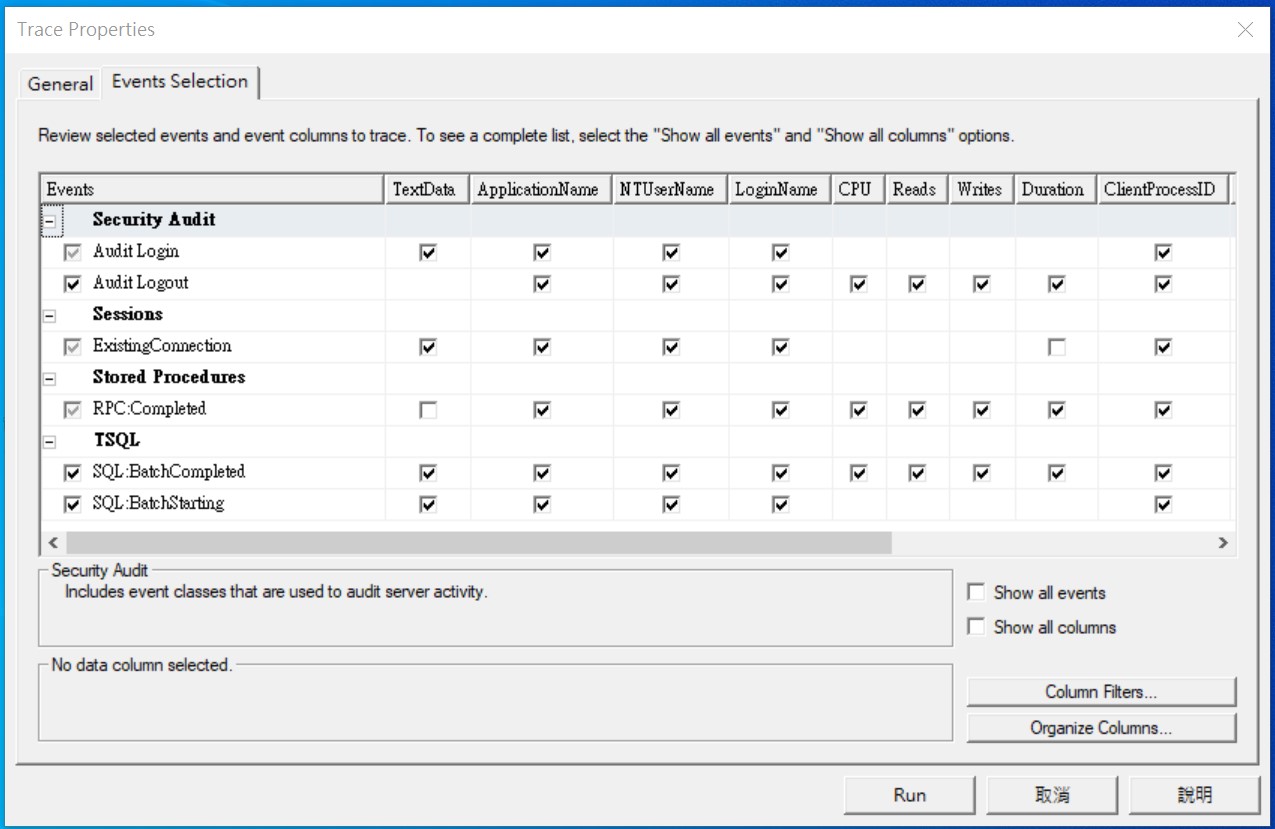
5.預設的追蹤事件
切換到事件選取(Events Selection)頁籤,可自訂事件(勾選需要的事件)

6.使用追蹤範本
   也可在一般設定(General)頁籤,依據不同追蹤目的可選擇不同的範本,不同的範本有定義不同的追蹤事件Events,選取後Event Selection頁籤的事件就會依據所選的範本而變動

7.若要自訂追蹤事件
    在事件選取(Events Selection)頁籤,可勾選Show all events顯示所有事件,才會顯示所有事件

    部分不常用追蹤欄位預設是隱藏的,可勾選Show all columns,才會顯示所有可用欄位

    展開前方的加號(+),就可以勾選該類別的各別事件與特定的欄位

    若需要過濾事件,可以點選Column filters,再去設定特定欄位的過濾條件
    例如預設已設定不會收集到SQL Server Profiler本身所執行的SQL Query。


8.設定追蹤儲存至實體檔案
   若需要在追蹤時就儲存實體檔案,則可在一般設定(General)頁籤
   (1)勾選Save to file,並指定檔案位置與檔名
   (2)建議設定追蹤檔大小上限,在set maximum file size輸入350
   (3)預設啟用檔案換用Enable file rollover,建議保留不動
   (4)預設不啟用伺服器處理追蹤資料,建議保留不動。
       若啟用時,因為當SQL Server負載大極度忙碌時,也不會略過追蹤,可能會造成性能的影響
     "Server processes trace data" tells the service running the trace to process the trace data and not the client application. With this option selected no trace data will ever be skipped even if the server is extremely busy, but note that your server performance may be affected if this happens


9.設定追蹤儲存至資料表
    不建議啟用,此動作可在收集完成後再手動進行匯入資料表。
    若勾選了,則要選擇連線到目的地SQL Servre與資料表。


10.設定自動停止追蹤
    若有需要自動停止追蹤,則勾選Enable trace stop time,然後指定一個停止日期與時間之後,當追蹤開始收集,就會自動在指定的時間自動停止。

Check the "Enable trace stop time" checkbox and give the time at which you want to stop track, SQL Server will automatically stop trace on that time.

11.開始收集追蹤
     按下 Run 就會開始執行收集


12.開始收集時的畫面如下
    可透過上方的工具列,按下暫停可暫停追蹤,但下停止可以停止追蹤。


13.另存追蹤
   按下File>Save As>Trace File... 可將目前顯是的追蹤內容,儲存到實體檔案
   按下File>Save As>Trace Table... 可將目前顯是的追蹤內容,儲存到資料表


分析案例
如果是SSIS Package資料流data flow的OLE DB Source - SQL Command with Parameter,則錄不到傳入的參數值,RPC:: Completed只會出現@P1, @P2
既使有選擇Stored Procedure與TSQL所有Event,仍然找不到傳入的參數值


2018年7月21日 星期六

SQL Nexus and RML Utilities (ReadTrace) – SQL Server效能分析工具

SQL Nexus and RML Utilities (ReadTrace) – SQL Server效能分析工具

update 2022/3/16
軟體下載與安裝方法

官方步驟

Prerequisites to run SQL Nexus

  1. .NET framework 4.6.2. Windows 10 anniversary update has version already.
  2. Download and install SQLSysClrTypes
  3. Download and install ReportViewer control (ReportViewer.msi)
  4. Download and install RML Utilities (RMLSetup_AMD64.msi)
  5. An instance of SQL Server (2012 or above) to connect to and process data
  6. Optional: PowerBI Desktop

Automate Prerequisites Installation

You can use the following PowerShell file (https://github.com/microsoft/SqlNexus/blob/master/Setup-Related/SetupSQLNexusPrereq.ps1) to install the three required and one optional prerequisites for SQL Nexus

How to Download and Use

  1. Download the SQLNexus_7.22.03.23_Signed.zip from Assets below. This is a zip file that contains Microsoft digitally-signed binaries
  2. Extract in a path location of your choice
  3. Go to the path and run sqlnexus.exe

安裝設定步驟
1.SQL Server Database Engine (官方步驟的第5點)
SQLNexus and RML需要SQL Server DB來儲存分析結果,可以使用SQL Server Express版本
Microsoft® SQL Server® 2019 Express

2.Report Viewer 
不同版本SQL Nexus與RML Utilities,需要不同版本的Report Viewer
RML Utilities requires Report Viewer to run correctly and Report Viewer also has a few updates to be considered. 

Report Viewer

Download

 2008

Report Viewer 2008系統需求.Net Framework 2.0

Microsoft Report Viewer 2008 SP1 Redistributable http://www.microsoft.com/download/en/details.aspx?id=3841

Security Update MS09-062
http://support.microsoft.com/kb/971119

Report Viewer Redistributable 2008 Service Pack 1 GDIPLUS.DLL Security Update
https://www.microsoft.com/en-us/download/details.aspx?id=3203

2010

Microsoft Report Viewer 2010 SP1 Redistributable Package http://www.microsoft.com/download/en/details.aspx?id=6610

Update fixes several Report Viewer issues after you install Visual Studio 2010 Service Pack 1 (主要描述的就是要安裝下面那個連結)

http://support.microsoft.com/kb/2549864 

Update for Microsoft Visual Studio 2010 Service Pack 1 Report Viewer (KB2549864)
https://www.microsoft.com/en-us/download/details.aspx?id=27231

Note If you have Microsoft Report Viewer 2010 SP1 Redistributable Package installed, install the file that is named "ReportViewer.exe." If you use Microsoft Visual Studio 2010 Service Pack 1, install the file that is named "VS10SP1-KB2549864-x86.exe."

 遇到以下錯誤,需安裝Report Viewer 2010 SP1 Redistributable Package

SQL NexusReports有超連結,但是無法點選開啟報表,需安裝Report Viewer 2010 SP1 update(KB2549864)


2015

Version=12.x.x.x

MICROSOFT REPORT VIEWER 2015 RUNTIME (12.0.2402.15)
https://www.microsoft.com/en-us/download/details.aspx?id=45496


Version=13.0.0.0

Microsoft® SQL Server® 2016 Service Pack 3 Feature Pack

https://www.microsoft.com/en-us/download/details.aspx?id=103444

i. Download and install enu\x86\sqlsysclrtypes.msi 

若x86與x64都下載了,在Windows 2016環境兩個版本都能安裝成功

Microsoft® System CLR Types for Microsoft SQL Server® 2016 SP3

    The SQL Server System CLR Types package contains the components implementing the geometry, geography, and hierarchy id types in SQL Server. This component can be installed separately from the server to allow client applications to use these types outside of the server.

    Note: This component also requires Windows Installer 4.5
      Filename: X86 and x64 Package (SQLSysClrTypes.msi)

ii. Download and install enu\x86\reportviewer.msi


安裝完成後的版本資訊 為 13.3.6300.2
SQLNexus github提供的下載連結reportviewer版本是13.2.5026.0(比較舊) 

必須先裝sqlsysclrtypes.msi,不然安裝ReportViewer時會出現以下錯誤


sqlsysclrtypes.msi與reportviewer.msi沒有安裝正確,執行SQLNexus會出現以下錯誤訊息

If you run sqlnexus.exe, Error "Could not load file or assembly 'Microsoft.ReportViewer.Common, Version=13.0.0.0,'"


3. Install RML Utilities (ReadTrace)
Description of Replay Markup Language Utilities for SQL Server
Obtain the RML Utilities for SQL Server

After you install the Database Experimentation Assistant, you will find the RML tools (ReadTrace and OStress) present in the C:\Program Files (x86)\Microsoft Corporation\Database Experimentation Assistant\Dependencies\X64\ folder.

If you're using the RML tools together with the SQL Nexus tool, you can obtain ReadTrace and ostress from https://github.com/microsoft/SqlNexus/releases/tag/09.04.0097.

RML Utilities for SQL Server is available for download from the Microsoft Download Center.

如果沒有透過Database Experimentation Assistant或SQLNexus來取得RML Utilities,直接從Download center下載安裝時,只能安裝x86或x64其中一種版本,如果已經安裝x86版本,再安裝x64時則會跳出已經安裝過x86,所以無法繼續安裝

我的範例環境與安裝順序是
Windows Server 2016 Datacenter (Azure VM Image)
1.安裝SQL Server 2019 Developer Edition與SSMS
2.無須安裝 .Net framework 4.6.2  (ndp462-kb3151802-web.exe) 
若安裝會跳出 .NET Framework 4.6.2 or a later update is already installed on this computer.
3.安裝 Microsoft System CLR Types for SQL Server 2016 (SQLSysClrTypes.msi)
4.安裝 Microsoft Report Viewer for SQL Server 2016 (ReportViewer.msi)
5.安裝 RML Utilities for SQL Server (X64) (RMLSetup_AMD64.exe)

4.SQL Nexus
Microsoft SQL Nexus
https://github.com/microsoft/SqlNexus

Prerequisites to run SQL Nexus

  1. .NET framework 4.6.2. Windows 10 anniversary update has version already.
  2. Download and install SQLSysClrTypes
  3. Download and install ReportViewer control (ReportViewer.msi)
  4. Download and install RML Utilities (RMLSetup_AMD64.msi)
  5. An instance of SQL Server (2012 or above) to connect to and process data
  6. Optional: PowerBI Desktop
PS.RML Utilities for SQL Server安裝完成後在功能清單會出現以下項目

Automate Prerequisites Installation

You can use the following PowerShell file (https://github.com/microsoft/SqlNexus/blob/master/Setup-Related/SetupSQLNexusPrereq.ps1) to install the three required and one optional prerequisites for SQL Nexus

How to Use

  1. Download the SQLNexus_v_7_21_07_07.EXE (this is a digitally signed self-extracting zip file by Microsoft)
  2. Double-click on it to allow files to be extracted in a path location of your choice
  3. You will now see a SQLNexus_v_7_21_03_26.zip file which you can extract into a subfolder, e.g. \SQLNexus_v_7_21_03_26
  4. Go to the new subfolder and execute sqlnexus.exe

第一次啟動SQL Nexus,會提示要連接到哪一個SQL Server Instance,連進去後會建立一個空的sqlnexus資料庫,此時若在UI介面上不改選其他資料庫,匯入分析log時(例如PSSDiag output folder)就會匯入此資料庫。


5.分析方法
(1)事先建立好分析用的log DB或用SQL Nexus建立log DB
(2)匯入log
A.如果用PSSDiag收集log
啟動SQL Nexus後,先選擇要匯入的資料庫或點選New Database建立新資料庫

點選 Import 
選擇PSSDiag收集後的output folder,如果要覆蓋上次匯入到目前選擇的DB,則可以勾選Drop Current DB Before Importing
PS.此選項是在Import之前執行Drop Database語法,並且用預設Create Database語法重新建立DB,也就是說原始DB如果有設定多個File group與多個data file,重建後會只有一個file group與一個mdf檔

匯入進行中
  
會也跳出匯入的狀態與紀錄

PS. TRC檔很大,則需要恢復比較多時間來匯入


B.如果只有收集SQL Trace (trc檔)
使用SQL Nexus,選擇log DB,匯入trc檔
用命令列匯入
Cd C:\Program Files\Microsoft Corporation\RMLUtils
ReadTrace.exe -S"(local)" -E -d"ReadTraceDB20161020213501" -I"D:\TEMP\SQLTraceFiles\2016-10-20_21-35-01\TPECDB08_20161020212501.trc" -o"D:\TEMP\SQLTraceFiles\2016-10-20_21-35-01\output"
修改參數
-d後面的資料庫名稱
-l要匯入第一個trc檔
-o指定一個執行匯入過程的紀錄檔目錄
匯入Import完成後自動啟動Reporter.exe顯示報表

FAQ:
Import時若出現以下警告: You have captured both trace and xevent files. import will fail!. Please remove one of them before importing.
經測試Import可能會成功,但是SQLNexus report可能會出問題,然後SQL Perf Main頁面可能會變成空白,必須重選DB,觸發重新載入資料,SQL Perf Main頁面才會恢復正常


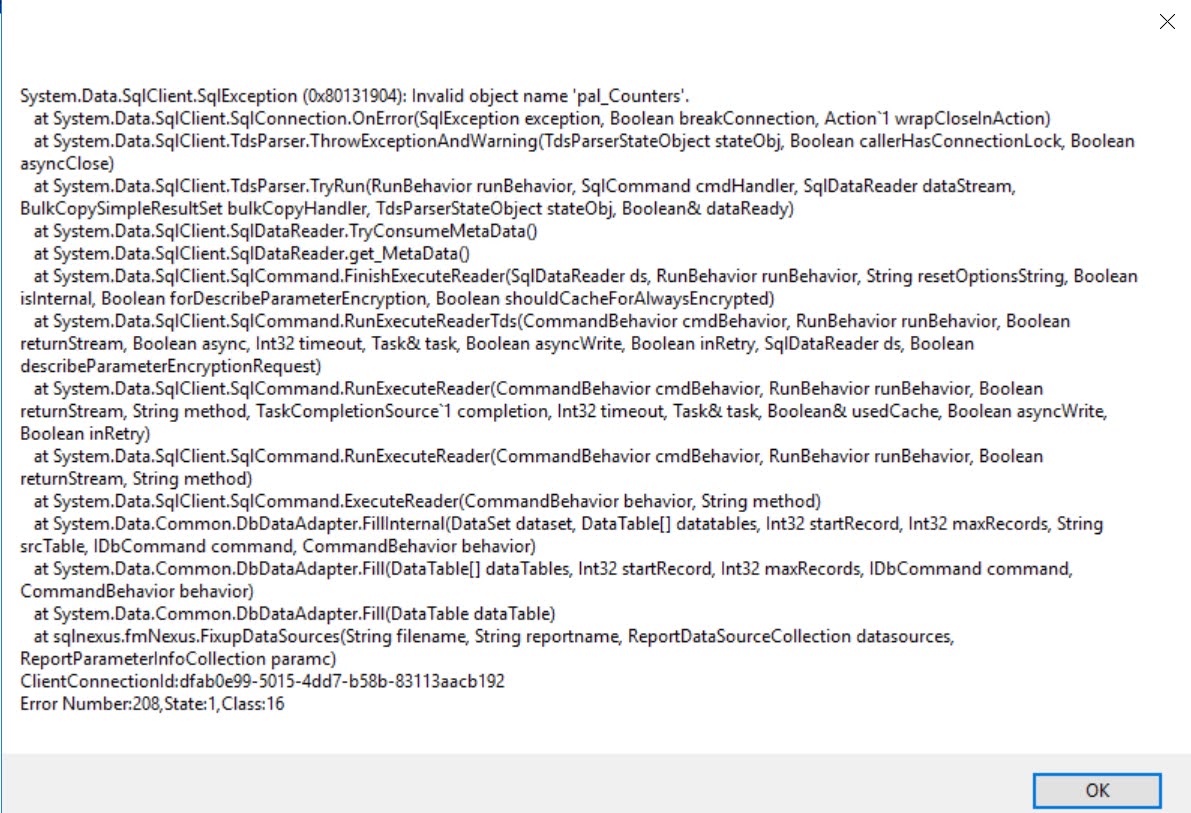
2.PerfMon Charts出現錯誤
Invalid object name 'pal_Counters'


原因:
SQLNexus_v_7_21_07_07 有bug
解決方法:
改下載SQLNexus_7.22.03.23_Signed.zip版本,此版PerfMon Charts改名為Perfmon Summary,即可正常顯示

3.Active Trace and XEvent Report出現以下錯誤

Invalid object name 'tbl_XEvents'

暫時還沒有找到解決方法

Reference:
Microsoft SQL Nexus
SQL Server: Working with SQL Nexus
https://social.technet.microsoft.com/wiki/contents/articles/51981.sql-server-working-with-sql-nexus.aspx


2018年7月8日 星期日

Use the Maintenance Plan Wizard (使用維護計畫精靈)

Use the Maintenance Plan Wizard
(使用維護計畫精靈)

1.使用SSMS連線到SQL Server,在SQL Server Instance>管理>維護計畫,按下右鍵,選擇[維護計畫精靈]


2.設定排程,建議在離峰時間執行,例如01:00,最少可以每周執行一次。

3.選擇需要定期執行的工作
如果您選擇了[重建索引],就不需要勾選[更新統計資料],因為REBUILD(重建索引)會一併更新統計資料
4.針對上一個步驟所選擇的項目,勾選您的資料庫
以下是[重建索引工作]
以下是[更新統計資料工作]
  
Reference:


2018年1月16日 星期二

SQL Server 2008 R2 Management Studio – Darker Shades of Blue Theme 套用Visual Studio色彩佈景主題環境設定檔

SQL Server 2008 R2 Management Studio – Darker Shades of Blue Theme
SSMS 2008 R2 套用Visual Studio色彩佈景主題環境設定檔

SQL 2012 SSMS以上才支援匯出與匯入環境設定檔
SQL 2008 R2 SSMS需自行調整字型與色彩,以下方法可以直接套用已經設定好的色彩佈景主題
SQL Server 2008 R2 Management Studio – Darker Shades of Blue Theme 套用Visual Studio色彩佈景主題環境設定檔

2017年6月21日 星期三

SQL Server File Location 檔案位置

SQL Server File Location
SQL Server 檔案位置

Tools

SQL Server

Location

sqlcmd.exe
bcp.exe


SQL 2017

C:\Program Files\Microsoft SQL Server\Client SDK\ODBC\130\Tools\Binn\


SQL 2016

C:\Program Files\Microsoft SQL Server\Client SDK\ODBC\110\Tools\Binn\


SQL 2014

C:\Program Files\Microsoft SQL Server\Client SDK\ODBC\110\Tools\Binn\


SQL 2012

C:\Program Files\Microsoft SQL Server\110\Tools\Binn\


SQL 2008 R2

C:\Program Files\Microsoft SQL Server\100\Tools\Binn\

DTSWizard.exe
DTExec.exe
SSISUpgrade.exe

SQL 2019

C:\Program Files\Microsoft SQL Server\150\DTS\Binn
C:\Program Files (x86)\Microsoft SQL Server\150\DTS\Binn

SQL 2017

C:\Program Files\Microsoft SQL Server\140\DTS\Binn
C:\Program Files (x86)\Microsoft SQL Server\140\DTS\Binn


SQL 2012

C:\Program Files\Microsoft SQL Server\110\ DTS\Binn\
C:\Program Files(x86)\Microsoft SQL Server\110\DTS\Binn\

SQL 2008 R2

C:\Program Files\Microsoft SQL Server\100\ DTS\Binn\
C:\Program Files(x86)\Microsoft SQL Server\100\DTS\Binn\


Tools

SSMS

Location

AzureDTExec.exe
DataProfileViewer.exe
DTExec.exe
DTExecUI.exe
DTSWizard.exe
ISDeploymentWizard.exe
ISProjectWizard.exe
ManagementTool.exe
SSISUpgrade.exe


C:\Program Files (x86)\Microsoft SQL Server Management Studio 18\Common7\IDE\CommonExtensions\Microsoft\SSIS\150\Binn\


Reference:

資料治理實施

資料治理實施